

If you’re running a modern laptop as the heart of your studio or creative setup, a good docking station can completely change your workflow.
One cable into your computer, and suddenly your audio interface, external drives, multiple monitors, MIDI keys or digital piano, and headphones are all online and ready to go.
The TobenONE USB‑C docking station is built exactly for that kind of rig. You can grab one on Amazon here.
I’ve now used two of their adapters, and this latest one is clearly aimed at people who need serious connectivity—think guitarists and producers with a home studio, content creators, or anyone running a multi‑screen workstation.
Overview / First Impressions
Out of the box, the dock feels like a proper, full‑featured desktop hub rather than a tiny travel dongle. It’s designed to live on (or behind) your desk and stay plugged in.
In the package you get:
- The docking station itself
- A USB‑C cable to connect to your computer (the “host” cable)
- A fairly large external power adapter
- A quick start guide with a link to the necessary drivers
The power brick is on the big side, but for a permanent desk setup it’s not a real issue—you plug it in once and hide it behind or under your desk.
Once everything is wired, you can run your entire setup from this single dock: multiple displays, external SSDs, audio interface, headphones, and even an electric piano or MIDI keyboard.
Build Quality & Design
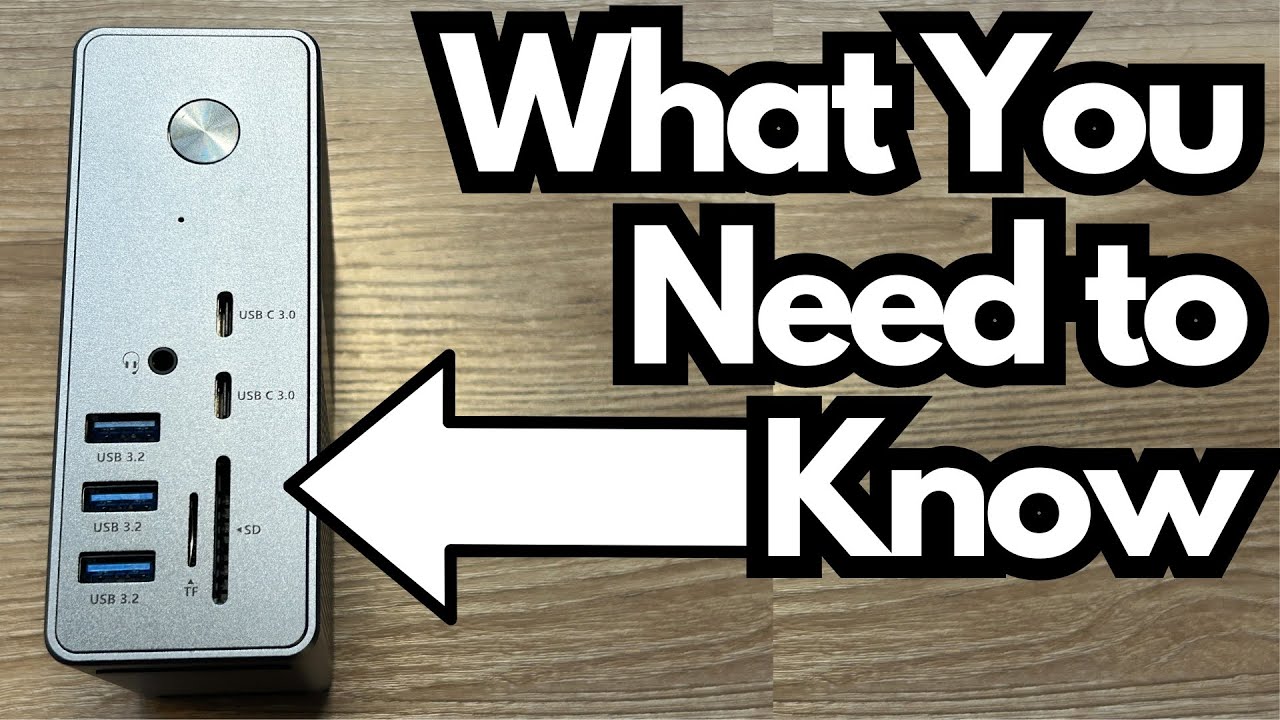
The TobenONE dock is laid out like a proper desktop hub, with:
- A power button on the unit
- A green power LED so you can quickly see if it’s active
- A mix of ports on the front and back for easy access and clean cable management
It’s clearly meant to be a “set and forget” piece of gear. You plug in all your permanent devices—monitors, Ethernet, audio interface, drives—and then just connect one USB‑C cable to your laptop whenever you sit down to work or play.
For guitarists and home‑studio users, that’s a big deal: no more re‑plugging your interface, SSD, and MIDI controller every time you want to record.
Features & Functions
Front‑Facing Ports
On the front, you get:
- Headphone port – For direct monitoring or casual listening.
- USB‑C port – Great for modern peripherals or bus‑powered devices.
- USB‑A port – For older gear, dongles, or standard USB devices.
- Micro SD slot – Handy for pulling audio stems, backing tracks, or video files off portable recorders, cameras, or phones.
Display Outputs
One of the strongest points of this dock is its display capability:
- Multiple HDMI ports
- One DisplayPort (DP 3)
This allows you to run several external displays from a single laptop. For guitarists and creators, that’s perfect for setups like:
- DAW on one screen
- Plugins / amp sims / pedalboard software on another
- Video editing timeline or lyric sheet on a third
Rear & System Ports
On the back you’ll find:
- DC power port – For the external power adapter.
- Additional USB‑A ports – Ideal for:
- Audio interface
- External SSD or hard drive
- MIDI controllers
- USB hubs or dongles
- LAN (Ethernet) port – For a stable, low‑latency wired connection (great for streaming, remote sessions, or online lessons).
- Host USB‑C port – This is the main connection to your laptop.
Driver Setup & Software Requirements
Unlike basic USB‑C hubs, this dock uses DisplayLink technology to drive multiple monitors. That means:
- You must install a driver for it to work properly with all displays.
- The quick start guide includes a link directly to the correct DisplayLink driver download page.
On macOS
On a Mac, DisplayLink uses the screen recording permission to capture and send your display to the external monitors. This is normal behavior for DisplayLink docks, but it’s something to be aware of:
- You’ll be prompted to allow screen recording in System Settings → Privacy & Security.
- Once allowed, your multiple displays will function normally.
On Windows, you still install the DisplayLink driver, but you generally won’t see the same screen recording permission dialog.
How It Fits a Guitarist or Creator Setup
The dock itself doesn’t color your tone—it’s not an audio interface—but it’s a powerful hub for all the gear that does.
Here’s how I’ve been using it in a music/guitar context:
- Audio interface connected via USB‑A
- External SSD for sessions, sample libraries, and project backups
- Two external displays for DAW, plugins, and reference material
- Headphone splitter plugged into the headphone port, feeding:
- Studio headphones
- An electric piano / keyboard setup
- Electric piano connected into the overall system via the dock
Everything is routed through the TobenONE, and it all works together: audio interface, drives, displays, and peripherals. For a guitarist, this means:
- Your amp sims and DAW are always ready on multiple screens.
- Your interface and drives stay permanently wired in.
- You only plug in one USB‑C cable to start recording, practicing, or streaming.
Limitations / Things to Know
A few practical points to keep in mind:
- You need the DisplayLink driver.
- This is not a plug‑and‑play “no driver needed” dock if you want full multi‑display support.
- The power adapter is large.
- Not ideal for travel, but fine for a fixed desk setup.
- Relies on USB‑C/host compatibility.
- Make sure your laptop supports the necessary USB‑C bandwidth and is compatible with DisplayLink for best results.
None of these are deal‑breakers for a home or studio rig, but they’re worth knowing before you buy.
Final Thoughts
The TobenONE USB‑C docking station is a strong option if you’re building a serious multi‑display, multi‑device workstation around a laptop—especially as a guitarist, producer, or content creator.
What it does well:
- Consolidates your audio interface, external drives, keyboards/pianos, and multiple displays into one hub.
- Keeps your desk wiring clean and your workflow simple: one cable to your laptop and you’re ready to work.
- Offers enough ports and display outputs to grow with your setup.
If you’re just looking for a small travel dongle, this is overkill. But if you want a central brain for your home studio or creative desk, the TobenONE is a very capable, reliable choice.
Resources
- DisplayLink Driver Download – Use the link provided in the included quick start guide to install the correct driver for your system.
- Toben Support Page – Check their site for updated drivers, compatibility notes, and setup instructions specific to your OS.