

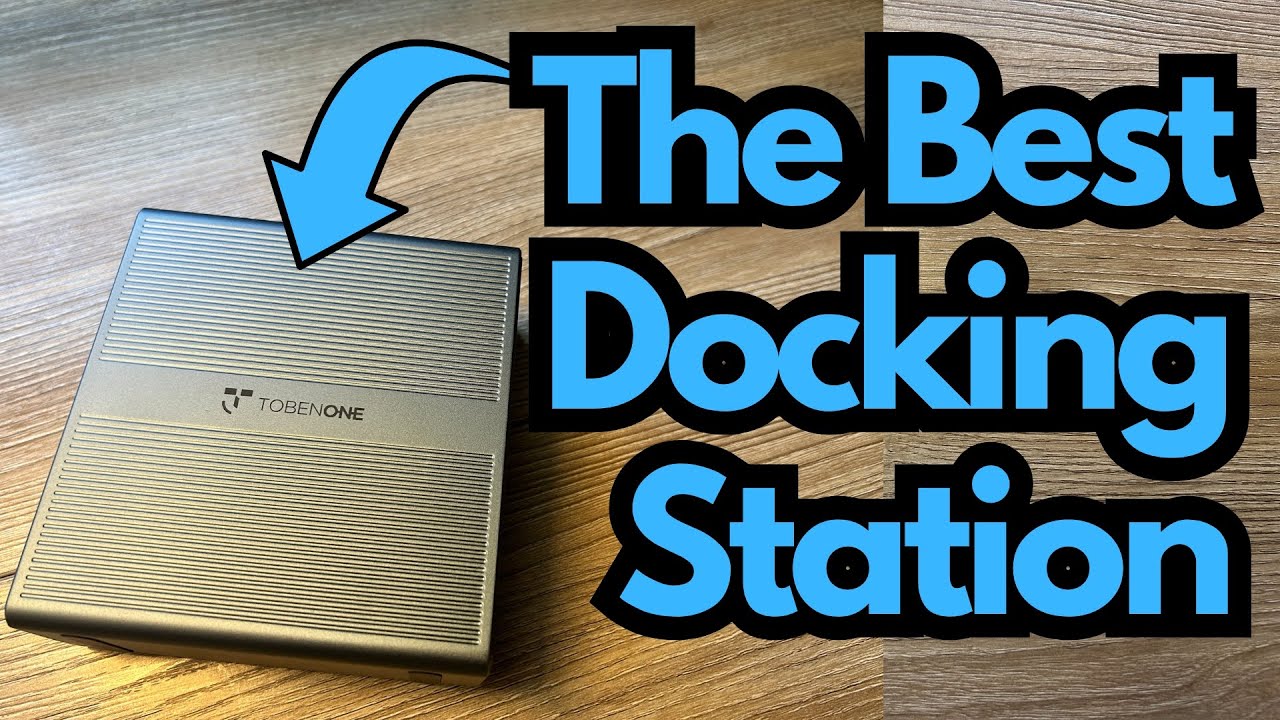
If you’re juggling multiple projects, running DAWs, video editors, or just like having a ton of screen real estate, a multi‑monitor dock can be a game changer.
This quad monitor USB‑C docking station is designed for people who want to run up to four external displays from a single machine—great for home studios, editors, coders, or anyone who lives inside their computer. You can grab it here on Amazon if you’re interested.
I’ve used a few different multi‑display adapters (dual, triple, and now quad), and this one sits in that “does the job, no fuss” category—as long as you understand its limitations.
Overview / First Impressions
Out of the box, this dock is straightforward and practical. It’s not a flashy centerpiece, but it’s clearly designed to live quietly on your desk and just work.
You get everything you need to get started:
- The quad monitor docking station itself
- A power adapter (brick plus detachable power cable)
- A USB‑C cable to connect the dock to your computer
- A quick start guide
The initial setup is simple, but there is one important step: this dock relies on DisplayLink technology, which means you’ll need to install a driver before your extra monitors will function properly.
Build Quality & Design
The dock is housed in a steel enclosure that feels solid and durable. From a desk‑use perspective, it’s thoughtfully laid out and easy to live with.
- Metal casing – Gives it a sturdy, premium feel and helps with heat dissipation.
- Clearly labeled ports – Everything is marked so you’re not guessing which output is which.
- Rubber feet on the bottom – Keeps it from sliding around when you plug in or move cables.
- Power switch – An actual on/off switch is a nice touch, especially if you don’t want the dock powered all the time.
It’s compact enough to tuck behind your monitors or under a laptop stand, so it won’t dominate your workspace. For a guitarist or producer running a home studio, that’s handy—you can keep it out of the way of interfaces, pedals, and controllers.
Features & Functions
This dock’s main purpose is simple: let you run up to four external monitors from one computer via USB‑C.
Core functions:
- Quad monitor support – Ideal if you want:
- One screen for your DAW (Logic, Reaper, Ableton, etc.)
- One for plugins, amp sims, or VSTs
- One for a browser, charts, or lyrics
- One for video, reference tracks, or file management
- USB‑C connection to your computer – One cable handles data and video.
- External power supply – The dock has its own power, so it’s not trying to run everything off your laptop’s battery.
Some versions of these docks require drivers, some don’t. This one does require a driver, and that’s key to getting all four displays working correctly.
Setup & Driver Installation
To get this dock running properly, you’ll need to install the DisplayLink driver:
- Go to synaptics.com (Synaptics owns DisplayLink).
- Download the DisplayLink Manager for your operating system.
- Install it and follow any on‑screen prompts.
- Once installed, connect the dock, power it on, and then plug in your monitors.
After that, your OS should see the additional displays, and you can arrange them in your display settings.
Once it’s set up, day‑to‑day use is essentially plug‑and‑play.
How It Fits a Guitarist’s Workflow
This isn’t audio gear, but it can seriously improve a guitarist’s or producer’s workflow.
Some practical ways to use four screens:
Studio / DAW Setup
- Screen 1: Full DAW arrange window (tracks, timeline)
- Screen 2: Mixer view
- Screen 3: Amp sims, plugin chains, IR loaders, tuner, metering
- Screen 4: Browser for tabs, charts, PDFs, reference tracks, or YouTube lessons
Content Creation
- Screen 1: Video editor (Premiere, Final Cut, DaVinci)
- Screen 2: Timeline or full‑screen preview
- Screen 3: Audio plugins, EQ, compression for your guitar tracks
- Screen 4: Script, notes, or social media dashboards
Live Streaming / Lesson Work
- Screen 1: Streaming software (OBS, etc.)
- Screen 2: Chat and comments
- Screen 3: Tabs, lesson material, or backing tracks
- Screen 4: DAW or amp sim for your guitar tone
If you don’t actually need four monitors, a dual‑monitor version of this style of dock can be cleaner and more practical. Personally, I prefer the dual‑monitor setup: it keeps my desk simpler and gives my laptop more space to breathe and stay cool.
Limitations / Things to Know
1. Streaming Services & DRM
Because this dock uses DisplayLink, it can trigger content protection (DRM) restrictions. That means:
- Services like Netflix and some other streaming platforms may not play video on monitors connected through this adapter.
- This is due to anti‑screen‑recording protections, not a fault of the dock itself.
If you rely heavily on streaming video on external monitors, this is something to be aware of.
2. Driver Dependency
- This dock requires the DisplayLink driver to function properly.
- Without it, you may not get all displays working, or resolutions may be limited.
- If you’re on a locked‑down work machine where you can’t install drivers, this may not be the right solution.
3. Overkill for Some Setups
- If you’re only ever going to use one or two external monitors, the quad version is more than you need.
- The dual‑monitor variant of this style of dock is often neater, uses fewer cables, and keeps your workspace simpler.
Final Thoughts
As a quad monitor USB‑C dock, this unit does what it’s supposed to do: it lets you reliably run up to four external displays from a single computer, with a solid metal build and a straightforward setup process.
From a guitarist’s or creator’s perspective, it’s great for:
- Spreading out your DAW, plugins, and reference material
- Running a clean multi‑screen streaming or content‑creation setup
- Keeping your laptop off to the side while your main work happens on external monitors
It’s not my personal favorite simply because I don’t need four screens—the dual‑monitor version fits my workflow and desk layout better. But if you genuinely need a quad monitor setup, this dock is a practical, no‑nonsense option that should serve you well, as long as you’re okay with installing drivers and understand the DRM limitations with streaming services.
Resources
DisplayLink Manager / Drivers: Download the required software from Synaptics (DisplayLink) at:
https://www.synaptics.com
Look for the DisplayLink Manager for your operating system.