

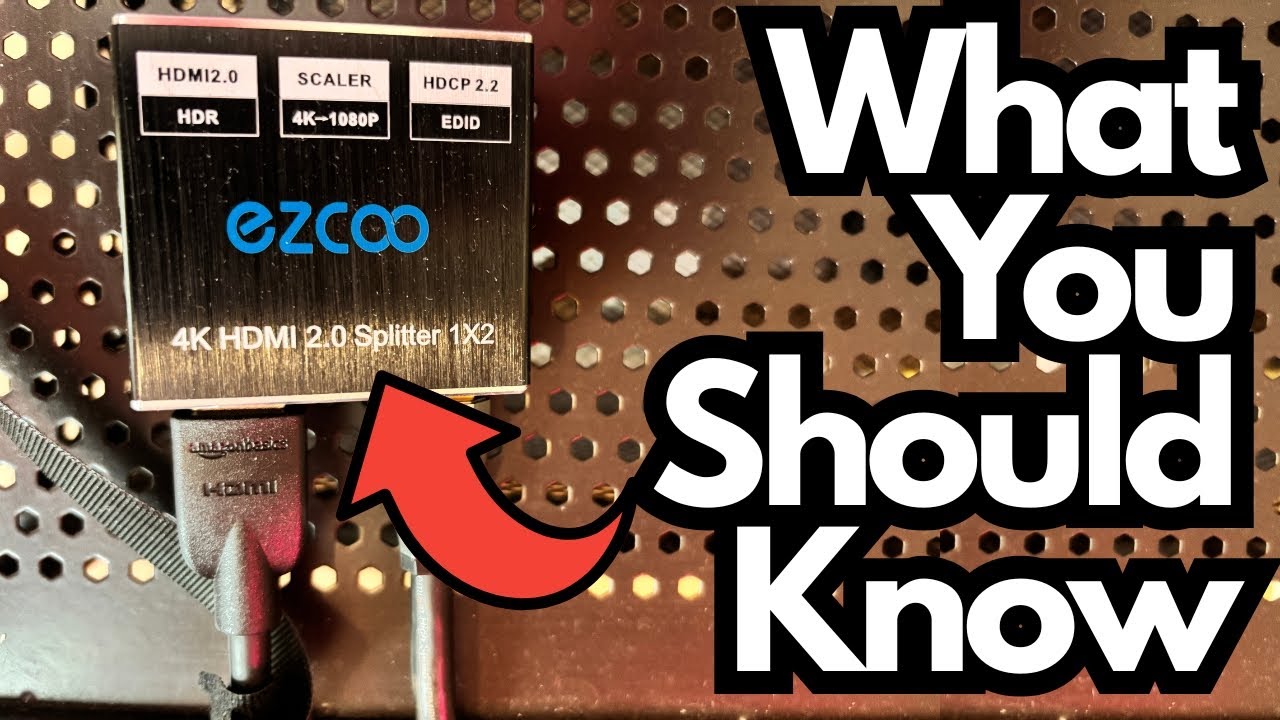
If you’re trying to stream gameplay from an older console like a PS3 without dropping a ton of cash on high-end gear, you’ve probably looked at budget HDMI capture/display solutions. They can work, but they’re not always plug-and-play perfection.
This post walks through one such setup: using a low-cost HDMI device to run a PS3 into a computer monitor for streaming, plus some honest thoughts on what’s good, what’s annoying, and who this kind of gear is really for.
You can grab this on Amazon if you’re interested.
Overview / First Impressions
The basic idea of the setup is:
- Console: PS3
- Displays: Dual computer monitors
- Extra Hardware:
- A budget HDMI device (capture/display or splitter-style box)
- A simple switch to toggle the second monitor between:
- Normal computer use
- PS3 gameplay
In practice, this lets you:
- Stream from your PS3 by routing video into your monitor and capture setup.
- Hit a switch to turn that same monitor back into a regular computer display when you’re not gaming.
Bottom line: It does work, and it’s a cost-effective way to get your console on a monitor and into a stream. But it’s not flawless.
How the Setup Is Connected
Here’s the basic flow of the system:
1. PS3 HDMI Out → HDMI Device
The PS3 sends its video signal into the HDMI box.
2. HDMI Device → Monitor (via Switch)
The HDMI box then feeds the monitor, with a switch allowing you to choose:
- Input from your computer
- Input from the PS3/HDMI device
3. Power Supply for the HDMI Device
The device is powered via a cable that runs to a small power block/charger.
When everything is behaving, you can:
- Set up your stream on your main monitor.
- Use the second monitor to display your PS3 gameplay.
- Flip the switch to turn that second monitor back into a regular PC screen when you’re done.
The Big Issue: Finicky Power
The main downside isn’t image quality or lag; it’s the power behavior of the HDMI device.
What’s Going Wrong?
The way the device accepts power is inconsistent. Symptoms include:
- Sometimes it just won’t turn on correctly.
- The monitor may not recognize the input.
- You have to fiddle with cables more than you should.
Typical “Fix” Routine
To get it working, you may find yourself doing this dance:
- Unplug the power cable from the HDMI device.
- Unplug the HDMI cables going into the device.
- Plug the power back into the device and power block.
- Reconnect the HDMI cables to the device and monitor/console.
- Wait for the monitor to recognize the signal again.
It’s not that it never works—it’s that it sometimes takes a couple of attempts and some patience.
Pros: Why You Might Still Want It
Despite the quirks, there are some real advantages:
- Budget-friendly
If you’re looking to save money, this kind of device will usually be much cheaper than brand-name capture cards or advanced HDMI switchers. - Functional for streaming
Once it’s up and running, it does what you need:- Shows your PS3 on a computer monitor.
- Lets you stream or capture gameplay.
- Flexible monitor use
With the added switch, you can:- Use your second monitor as a normal PC display.
- Flip over to console gameplay when you’re ready to stream or record.
For someone just getting into streaming or trying to repurpose existing monitors for console gaming, that flexibility is valuable.
Cons: Limitations & Things to Know
Before you buy something similar, keep these points in mind.
1. Power Reliability
- The biggest drawback is unreliable power handling.
- Expect occasional:
- No-signal issues
- Needing to unplug/replug power and HDMI
- If you want something that “just works” every time, this will frustrate you.
2. Setup Hassle
- Initial setup can take more trial and error than it should.
- You might have to:
- Swap cables
- Power-cycle the device
- Reconfigure your monitor inputs more than once
3. Not a Premium Experience
- This is a budget solution, and it feels like one.
- Don’t expect:
- Rock-solid reliability
- Premium build quality
- Perfect plug-and-play behavior
Who This Kind of Device Is For
This type of HDMI device is a decent fit if:
- You’re on a tight budget and can’t justify a more expensive capture card.
- You’re comfortable troubleshooting basic HDMI and power issues.
- You just need something that works most of the time, not a professional-grade, set-and-forget rig.
It’s probably not for you if:
- You stream regularly and need maximum reliability.
- You don’t want to deal with unplugging/replugging cables when something doesn’t work.
- You’re willing to spend more to avoid tech headaches.
Practical Tips for Using a Finicky HDMI Device
If you end up with a similar box, here are some ways to make life easier:
- Use a quality power adapter
Sometimes swapping to a better power brick or cable can improve stability. - Secure your cables
Make sure HDMI and power cables aren’t loose or under tension; poor connections can make the “finicky” behavior worse. - Create a reset routine
When it fails:- Turn off the monitor input.
- Unplug power from the HDMI device.
- Unplug HDMI cables.
- Reconnect power.
- Reconnect HDMI.
- Switch the monitor input back.
- Avoid constant plugging/unplugging at the console
Do your reconnecting at the device side, not the console side, to reduce wear on your PS3’s HDMI port.
Final Thoughts
This kind of budget HDMI device is a classic trade-off:
- Yes, it works.
- No, it’s not perfect.
If you’re trying to stream from a PS3 and want a cheap way to get the signal onto a computer monitor, it can absolutely do the job—as long as you’re okay with a bit of cable juggling and the occasional power reset.
If reliability and convenience matter more than price, you may want to invest in a higher-quality capture or switching solution. But if you’re willing to put up with some quirks to save money, this setup can still be a practical way to get your console into your streaming workflow.