

If you’re serious about securing your online accounts, hardware security keys like the YubiKey are one of the best tools you can add to your setup.
When you pair a YubiKey with a password manager like LastPass, you get strong protection against phishing, stolen passwords, and other common attacks—without adding a ton of hassle to your daily workflow.
This quick guide walks you through how using a YubiKey with LastPass actually looks in practice, step by step.
Overview / First Impressions
In this example, LastPass is set up with:
- An email address (your LastPass username)
- A master password
- A YubiKey connected via a USB‑C adapter
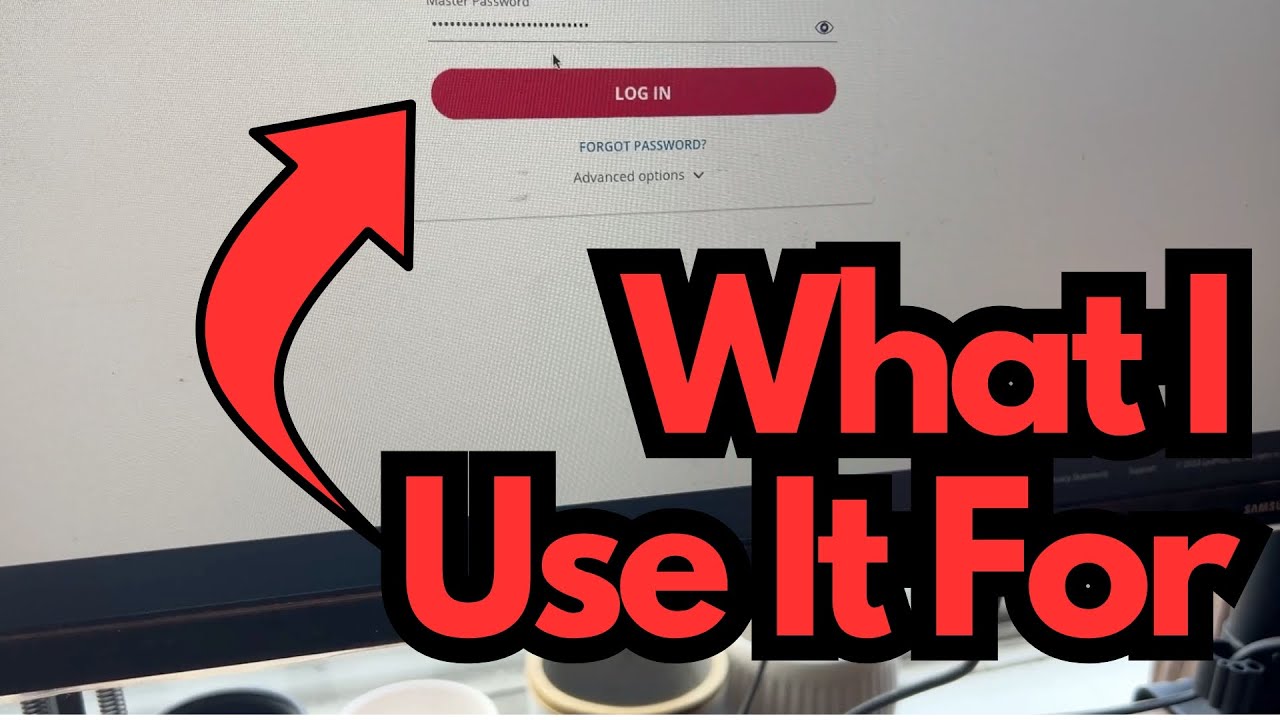
Once everything is configured in your LastPass account settings, logging in is straightforward: you enter your email and master password, then confirm with a quick touch on the YubiKey. That’s your second factor of authentication.
For anyone juggling multiple sensitive accounts—whether that’s band finances, online store logins, or studio services—this is a clean, fast way to add serious security without slowing you down.
Build & Setup: YubiKey + USB‑C
In this setup, the YubiKey is:
- Plugged into a USB‑C adapter
- The adapter is connected to the computer
This is useful if:
- Your computer only has USB‑C ports
- Your YubiKey is a USB‑A model
- You’re using a hub or dock as part of your studio or desk setup
Once the YubiKey is connected, your system will see it as a security key. You don’t have to interact with it until LastPass prompts you.
Features & How It Works with LastPass
Here’s the basic login flow with LastPass and a YubiKey:
- Enter your email
Type your LastPass account email in the email/username field. - Enter your master password
This is the main password that unlocks your vault. Keep this strong and unique. - Click “Log In”
After you hit the login button, LastPass checks your credentials and then asks for your hardware key. - Touch the YubiKey
- The YubiKey will usually start flashing (often a yellow light).
- Lightly hold your fingertip on the YubiKey’s metal contact for about a second.
- This confirms you’re physically present and authorizing the login.
- Access granted
Once the touch is registered, LastPass completes the login and you’re in your vault.
No codes to copy, no app switching—just a quick tap on the key.
How It Feels in Daily Use
From a day-to-day perspective, logging in with a YubiKey adds only a second or two to your normal password routine:
- Type your email and master password as usual
- Tap the key when it flashes
- You’re logged in
For musicians and guitarists who bounce between different machines—home studio rig, rehearsal laptop, maybe a tour machine—this is especially handy. You get consistent, strong security on every system where you can plug in your YubiKey.
It’s also great for:
- Protecting access to cloud backups of sessions
- Locking down logins to merch stores, Patreon, or other revenue platforms
- Keeping your main email and social accounts safer from hijacking
Limitations / Things to Know
A few practical points to keep in mind:
- You must have the YubiKey physically connected
If the key isn’t plugged in (or the adapter isn’t seated properly), LastPass won’t be able to complete login. - You still need your master password
The YubiKey is a second factor, not a replacement for your master password. Protect that password carefully. - Touch is required
The key won’t work automatically just by being plugged in—you must touch the metal contact when it flashes. - Adapters can be a weak link
If you’re using a USB‑C adapter, make sure it’s reliable. A flaky adapter can make the key appear to “not work” when it’s really just a connection issue. - Have a backup plan
Consider setting up a backup YubiKey or alternate 2FA method in case you lose the primary key.
Final Thoughts
Using a YubiKey with LastPass is one of those upgrades that feels almost too simple for how much security it adds. Once it’s set up, the login flow barely changes: you type your email and master password, tap the key, and you’re in.
If you’re managing important logins—whether for personal life, your music projects, or your business—this is a smart, low-friction way to lock things down much more securely than with a password alone.