

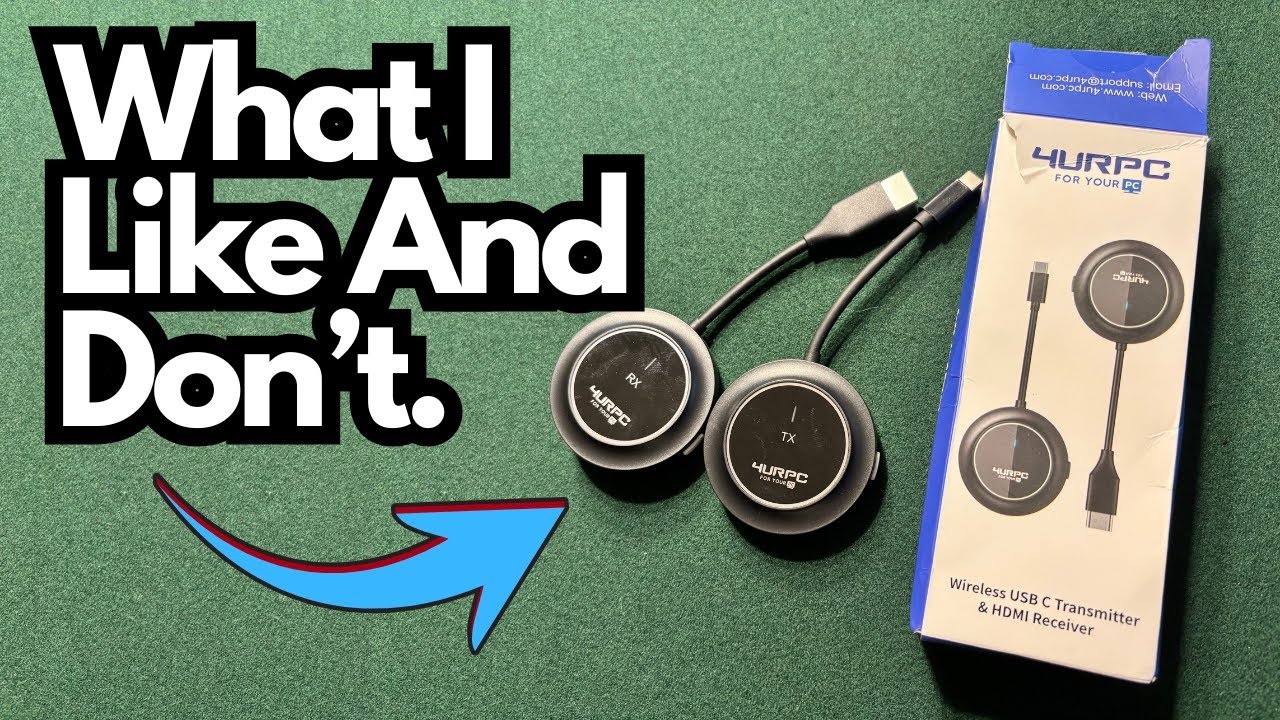
If you’re tired of juggling HDMI cables or dealing with clunky screen-mirroring menus, a compact USB‑C wireless transmitter can be a surprisingly easy fix. This little gadget lets you beam your phone or other USB‑C device straight to your TV with almost no setup.
This post walks through how this wireless USB‑C transmitter works, how to set it up, and a few things to keep in mind so you get a smooth, cable‑free experience.
You can grab it here on Amazon if you’re interested.
What This Wireless USB‑C Transmitter Does
In plain terms, this device is a wireless HDMI replacement:
- TX (Transmitter): Plugs into your phone, tablet, or computer via USB‑C.
- RX (Receiver): Plugs into your TV and gets power via USB.
Once both ends are connected and powered, your device’s screen appears on your TV—no Wi‑Fi configuration, no apps, no menus.
This is ideal if you:
- Want to mirror your phone to a TV quickly (movies, photos, presentations).
- Don’t have a smart TV or don’t trust its built‑in casting.
- Travel and want a portable, plug‑and‑play solution for hotel TVs.
What’s in the Box
You’ll typically get:
- 1 × TX (Transmitter) with USB‑C connector
- 1 × RX (Receiver) with USB‑C for power and HDMI‑style body
- 1 × USB power cable (usually USB‑A to USB‑C) for the receiver
The exact shapes can vary, but the basic idea is the same: one piece lives on the TV, the other lives on your device.
Step‑by‑Step: How to Set It Up
1. Connect the Receiver to Your TV
On the back of your TV:
- Plug the RX unit into the TV:
Insert the receiver into an HDMI port (or whatever video interface it uses). - Provide power via USB:
Plug the USB‑C power cable into the RX, then connect the other end (USB‑A) into a free USB port on your TV.
If your TV has a powered USB port (most modern sets do), the receiver doesn’t need a separate wall adapter—it can just “hang” off the back of the TV and draw power directly from that USB port.
2. Charge the Transmitter First
Before you start streaming:
- Fully charge the TX (transmitter), or at least make sure it has enough battery.
- This is crucial because the TX runs wirelessly and won’t work if it’s dead or too low on power.
3. Plug the Transmitter into Your Device
Once charged:
- Take the TX unit.
- Plug it into your device’s USB‑C port—for example:
- Your Android phone
- A USB‑C iPad
- A USB‑C laptop
- It should behave like any other USB‑C dongle: just plug and go.
In the example shown, the TX is connected to an iPhone via an appropriate adapter, and the phone’s screen appears on the TV.
4. Wake Your Device to Start Mirroring
After everything is plugged in:
- Turn on your TV and select the HDMI input where the RX is connected.
- Wake up your phone, tablet, or computer, or unlock the screen.
- Once the device is active, the image should appear on your TV automatically.
If the TV shows a blank screen at first, simply:
- Wake the phone from sleep
- Unlock it
- Wait a second or two for the connection to kick in
Everyday Use Cases
Here’s where this kind of transmitter shines:
- Streaming video from your phone to a bigger screen without extra apps.
- Showing photos and videos to friends and family on the TV.
- Presentations from a phone, tablet, or laptop in a meeting room.
- Travel setups, where you plug into a hotel TV and mirror your device.
Because it’s plug‑and‑play, it’s especially handy for non‑techy users or situations where you don’t want to mess with Wi‑Fi networks and passwords.
Things to Know & Limitations
A few practical notes before you rely on it:
- Transmitter battery is essential:
The TX must be charged. If it’s low, the connection can drop or fail to start. - TV USB power matters:
The RX draws power from your TV’s USB port. If your TV’s USB output is weak or turns off when the TV is on standby, the receiver will power down too. - Input selection:
You still need to manually select the correct HDMI input on your TV. - Not a smart TV replacement:
This doesn’t run apps by itself; it just mirrors whatever is on your device.
Final Thoughts
This wireless USB‑C transmitter is about as simple as screen mirroring gets: plug the receiver into your TV, power it from USB, plug the transmitter into your device, and you’re done. No Wi‑Fi setup, no special apps—just a straightforward wireless link from your phone or computer to your TV.
If you frequently share content on a bigger screen and don’t want to live in HDMI‑cable chaos, this kind of plug‑and‑play transmitter is a clean, portable solution.