

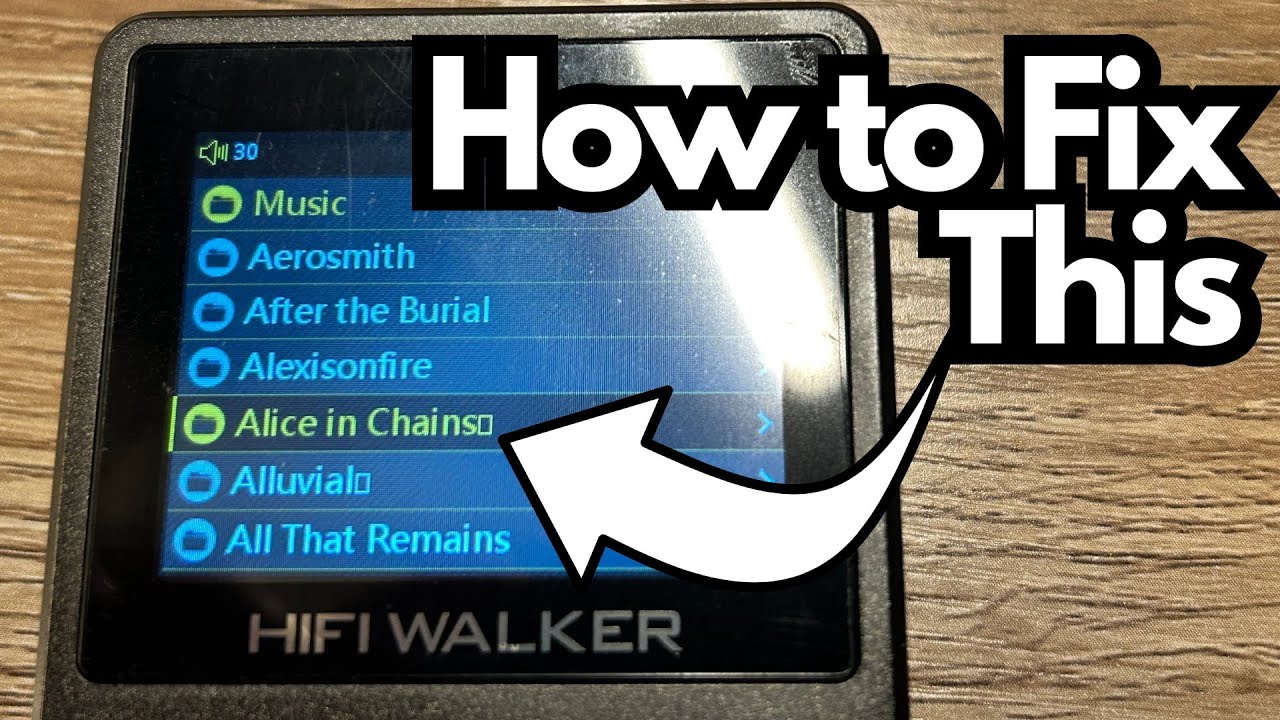
If you’re using a Zoom H2 (or a similarly old-school digital recorder/music player), you might have noticed a weird little square symbol showing up after some artist names—like after the “s” in Alice in Chains or at the end of other artist titles.
It looks ugly, it clutters your screen, and it’s not immediately obvious why it’s there. The good news: it’s easy to fix. You can grab one here on Amazon if you’re interested.
This quick guide walks you through what that square actually is and how to get rid of it for good.
Overview: What’s That Square Symbol?
On the Zoom H2, that little square after an artist’s name isn’t some mysterious character—it’s just the device’s way of showing an extra space at the end of the text.
Modern apps usually ignore trailing spaces in names and titles, but older devices like the H2 don’t. Instead, they render that space as a square block.
So if you see:
Alice in Chains◻Anton Dufour◻
what you’re really seeing is:
Alice in ChainsAnton Dufour(with a space after the last letter)
Why This Happens on the Zoom H2
The Zoom H2 reads the metadata (artist, album, track names) directly from the files or folders on your SD card. When there’s a trailing space in the folder or file name, the H2 doesn’t know to ignore it, so it displays that space as a square.
Because this is an older, no-apps, no-frills style device, everything is done “the old-school way” through the file system. That means if there’s junk in the text, you’ll see it.
Step-by-Step: How to Remove the Square
You’ll be editing the names of the folders (or files) on the H2’s storage via your computer. Here’s how:
1. Connect Your Zoom H2 to Your Computer
- Plug your Zoom H2 into your computer via USB, or insert the SD card into a card reader.
- Wait for the device or card to show up as a drive on your computer.
2. Open the H2’s Storage
- On your computer, open File Explorer (Windows) or Finder (macOS).
- Click on the drive that represents your H2 or SD card.
- Navigate to the Music folder (or wherever your audio files are stored).
3. Find the Problem Artist Folder
- Look for the artist folder that’s showing the square on your H2 display.
- For example, a folder called
Alice in Chainsmight look normal at first glance, but it has a space at the end.
4. Edit the Folder Name
- Right-click on the artist folder name.
- Choose Rename.
- Move your cursor to the very end of the name.
- Press Backspace once to remove the trailing space.
- Press Enter to confirm the new name.
So you’re changing:
Alice in Chains→Alice in ChainsAnton Dufour→Anton Dufour
That single deleted space is what removes the square from the H2’s display.
5. Repeat for Other Artists
If you see multiple artists with that square, you’ll need to repeat this process for each one. It’s a bit tedious, but once it’s done, it’s done.
Verifying the Fix on the H2
- Safely eject the H2 or SD card from your computer.
- Disconnect and power on the Zoom H2.
- Navigate to your artist list.
You should now see the artist names without the annoying square at the end.
Limitations & Things to Know
- Manual process: There’s no app or automatic metadata cleaner built into the H2. Everything is done by directly editing folder and file names.
- Be precise: Make sure you only delete the extra space at the end, not part of the actual artist name.
- Consistent naming helps: If you’re loading a lot of music onto older devices, it’s worth cleaning up your folder and file names in advance on your computer.
Final Thoughts
The Zoom H2 is a solid old-school device, but it definitely shows its age when it comes to handling text and metadata. Those little square symbols are just a side effect of that.
Fortunately, the fix is simple: connect it to your computer, remove the trailing spaces from your artist (or album/track) names, and the display will look clean and professional again.