

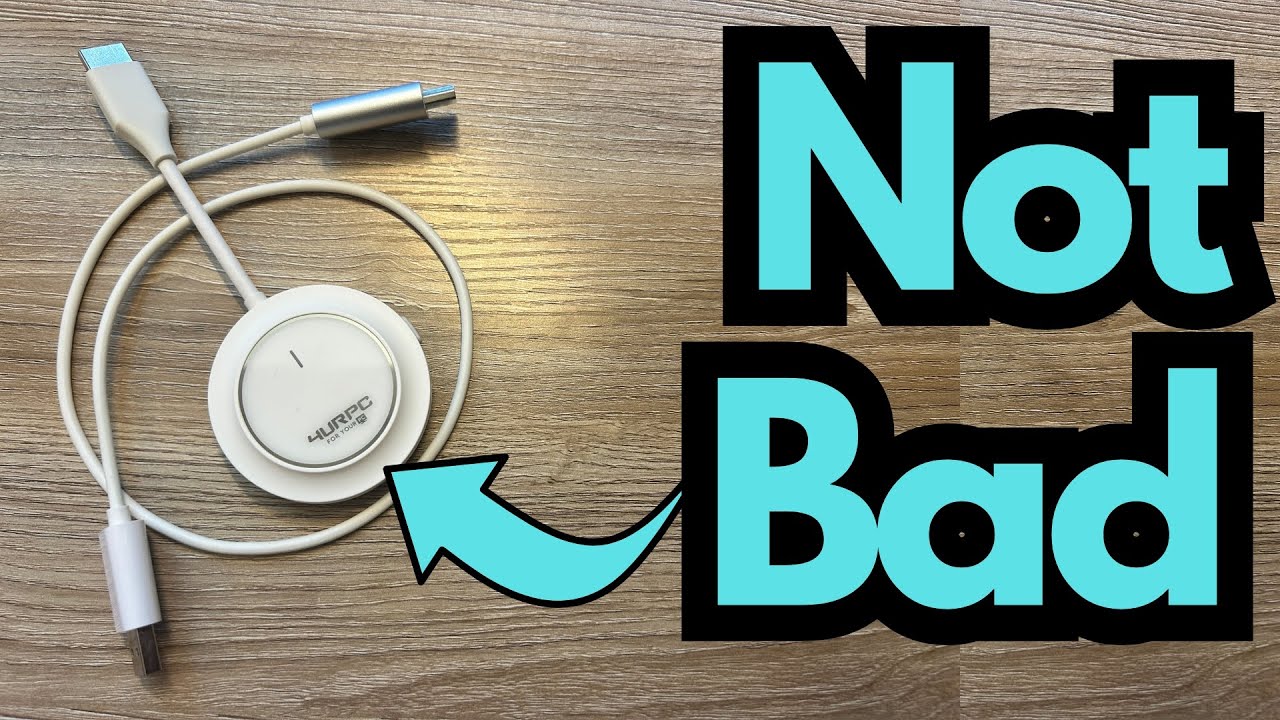
If you’ve ever wanted to send video from your computer to a TV or monitor without running a long HDMI cable across the room, a wireless HDMI kit like this one from For Your PC can be a handy solution.
It’s especially appealing if you’re working in a tight space, presenting in a small room, or just want a cleaner setup around your desk or studio. You can grab one on Amazon if you’re interested.
This post walks through how it works, how to set it up, what it’s good for, and where it falls short—especially if you’re thinking about gaming or low‑latency use.
Overview / First Impressions
This kit is essentially a wireless HDMI extender. You get two main pieces:
- A transmitter that connects to your computer
- A receiver that connects to your TV or monitor
Once it’s set up, your computer’s display is sent wirelessly to the screen—no HDMI cable running between the two.
My first reaction was a bit mixed. The instructions weren’t very clear, which made the initial setup more annoying than it needed to be. But once I figured out which piece goes where, it turned out to be simple and straightforward to use.
From a guitarist/creator perspective, this kind of device is useful if you:
- Want to mirror your DAW, amp sim, or plugin window to a big TV in your studio
- Do lesson videos or live streams and need a second display across the room
- Present slides, charts, or tabs from a laptop to a larger screen without cables
Build Quality & Design
The design is pretty standard for this type of product:
- Transmitter dongle: Plugs into your computer’s HDMI (or adapter) and has a USB‑C port for power.
- Receiver dongle: Plugs into the HDMI port on your TV or monitor and also has a USB‑C port for power.
Both units are compact and lightweight—easy to toss in a bag with a laptop. They feel functional rather than premium, but that’s normal for this category.
The kit also includes a USB‑C cable that you can use to power one of the units. You’ll still need an additional cable or port for the other.
Features & Functions
Here’s what the kit is designed to do:
- Wireless HDMI transmission from your computer to a TV or monitor
- Simple plug‑and‑play‑style setup (no drivers or software mentioned)
- Powered via USB‑C on both the transmitter and receiver
- Works with:
- Laptops and desktops (via HDMI or an adapter)
- TVs and monitors with HDMI inputs
- USB ports on the TV/monitor or external power adapters for power
What it does not claim (and what you shouldn’t expect):
- Ultra‑low latency for competitive gaming
- Advanced features like 4K at high refresh rates, ARC, or audio‑only modes (none of that is mentioned)
Setup: How to Connect It
Once you ignore the confusing instructions and just follow the logic, setup is easy:
- 1. Connect the transmitter to your computer
- Plug the HDMI end of the transmitter into your computer’s HDMI port.
- If your computer doesn’t have HDMI, use an HDMI adapter (USB‑C to HDMI, for example).
- 2. Power the transmitter
- Use a USB‑C cable to connect the transmitter’s power port to:
- A USB port on your computer, or
- A USB power adapter or power bank.
- Use a USB‑C cable to connect the transmitter’s power port to:
- 3. Connect the receiver to your TV or monitor
- Plug the receiver into an HDMI port on your TV or monitor.
- 4. Power the receiver
- Use a USB‑C cable to connect the receiver’s power port to:
- A USB port on your TV, or
- A USB power adapter or power bank.
- Use a USB‑C cable to connect the receiver’s power port to:
- 5. Select the HDMI input on your TV/monitor
- Switch the TV or monitor to the HDMI port where the receiver is plugged in.
Once both ends have power and are connected, they should link up automatically and mirror your computer’s display.
How It Fits in a Guitarist’s Setup
This device doesn’t change your audio quality—it just sends your video (and system audio) wirelessly to another screen. But that can be really helpful in a guitar or studio context.
Some practical uses:
- Studio Monitoring
- Mirror your DAW (Logic, Reaper, Ableton, etc.) to a big TV mounted on the wall so you can see waveforms, amp sims, and plugins from across the room.
- Great if your recording area and your computer desk aren’t in the exact same spot.
- Lesson & Practice Setup
- Show tabs, notation, or chord charts on a larger screen while you sit with your guitar away from your desk.
- Useful for teaching in a small room where you want students to see your screen without everyone crowding around a laptop.
- Content Creation
- If you film lessons or playthroughs, you can have your script, notes, or DAW timeline on a TV off‑camera while your computer stays near your recording gear.
- Makes it easier to keep an eye on takes and levels without being tethered by a long HDMI cable.
For casual video watching or basic mirroring, it works as expected. The signal comes through and does the job.
Limitations / Things to Know
1. Both Units Need Power
This is probably the biggest practical downside:
- The transmitter needs power via USB‑C.
- The receiver also needs power via USB‑C.
That means:
- You’ll need two powered USB ports (one near your computer, one near your TV or monitor), or
- A USB port plus a wall adapter or power bank on each side.
It’s not a single‑plug, totally cable‑free solution. You’re trading one long HDMI cable for two shorter USB‑C power cables.
2. Not Ideal for Gaming
The manufacturer (and some people online) suggest it can be used for gaming, but that’s questionable:
- Gaming—especially fast, competitive titles—demands very low latency.
- Even wired connections can struggle with that sometimes.
- Wireless HDMI will almost always introduce some delay, which can throw off timing.
If you’re playing something super casual, you might be able to live with it. But if you care about responsiveness, you’re better off using a direct cable.
3. Documentation Isn’t Great
The instructions are not very clear, which can make first‑time setup a bit confusing. The actual process is simple once you understand:
- Transmitter = computer
- Receiver = TV/monitor
- Both need power
But don’t expect the manual to walk you through it elegantly.
Final Thoughts
This For Your PC wireless HDMI kit does what it promises: it sends your computer’s display to a TV or monitor wirelessly, once you get it powered and plugged in correctly.
It’s a solid option if you:
- Want to mirror your screen across the room without a long HDMI cable
- Need a clean setup for lessons, studio work, or casual media
- Are okay with powering both ends via USB‑C
It’s not the best choice if you:
- Are looking for a low‑latency solution for serious gaming
- Want a completely cable‑free, no‑power‑required system
- Expect premium build quality or super detailed documentation
For guitarists, teachers, and home‑studio folks who just need a convenient way to throw their computer screen onto a bigger display, it’s a useful little tool—as long as you understand its limitations and plan your power setup accordingly.
Resources
- Check the product page for exact specs (resolution, supported formats, and latency claims).
- Make sure you have:
- A compatible HDMI or USB‑C to HDMI adapter for your computer
- Enough USB power sources (ports, wall adapters, or power banks) for both transmitter and receiver