

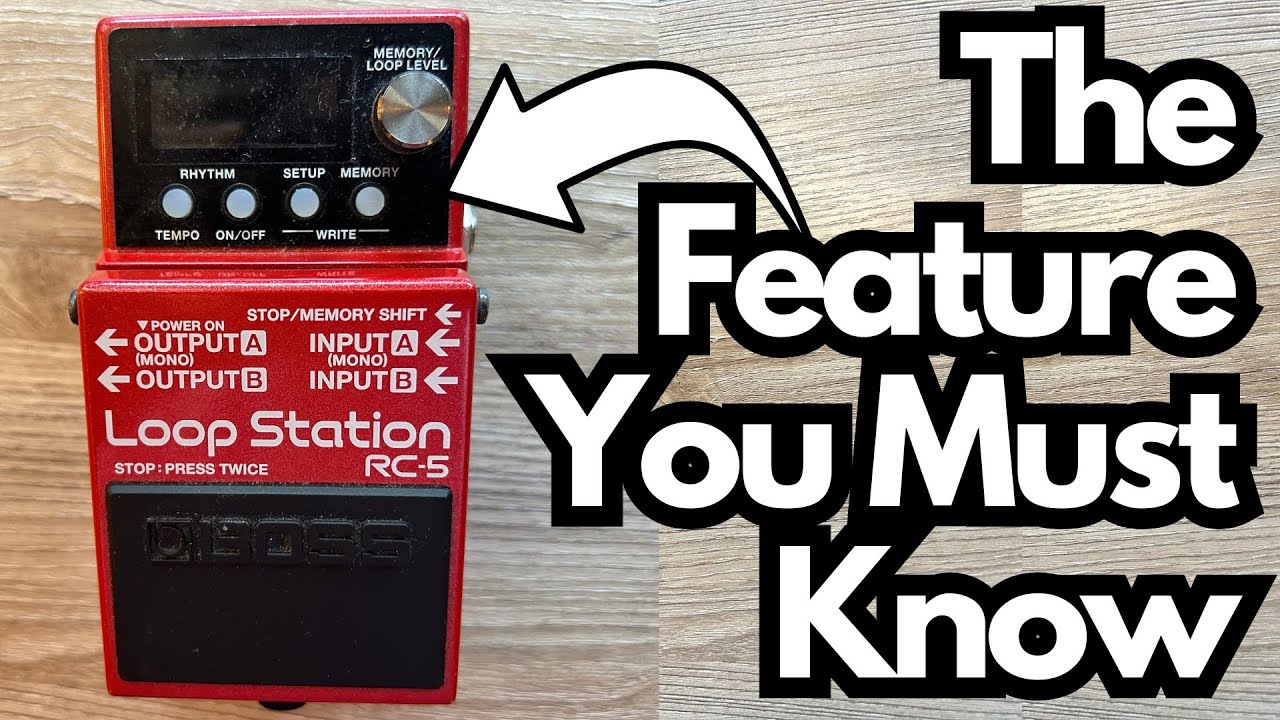
If you own a Boss RC-5 looper and you’re only using it to record live loops, you’re missing one of its most powerful features: the ability to load full backing tracks straight into the pedal.
For guitarists, this turns the RC-5 into a compact practice station and performance tool. You can jam over full-band tracks, drum grooves, or your own mixes—without needing a computer, DAW, or separate playback device on stage or in the practice room. You can grab one here from Amazon.
This guide walks you through how to load backing tracks from:
- Boss Tone Studio’s built-in library
- Your own audio files from your computer
Overview / First Impressions
The Boss RC-5 is already a feature-packed compact looper, but one of its most overlooked strengths is backing track support. You can:
- Import factory backing tracks via Boss Tone Studio
- Load almost any song or audio file you want from your computer
- Store tracks per memory slot and keep them separate from your live loops
For guitar players, that means you can:
- Practice improvisation over drum grooves or full-band mixes
- Build live sets with preloaded songs and click tracks
- Use the RC-5 as a simple backing track player on your pedalboard
Once you understand how the storage works, it’s surprisingly straightforward.
Build Quality & Design (What Matters for Backing Tracks)
From a backing-track perspective, a few design choices really help:
- USB Connectivity – The RC-5 connects via a standard USB-A to USB-B cable (the “printer” style plug on the pedal side). This is your bridge to both Boss Tone Studio and your computer’s file system.
- Color Screen – The small display uses color to indicate things like whether a backing track is present. For example, a memory with a loaded backing track will show as light blue instead of dark blue.
- Memory Structure – Each memory slot can hold:
- A loop you record on the pedal
- A backing track file
These are treated as separate things, which is crucial when you start managing your content.
The RC-5 stays compact and pedalboard-friendly while still offering enough I/O and control to work as a backing track player.
Features & Functions for Backing Tracks
Here’s what the RC-5 can do in this context:
- Import Boss Tone Studio Backing Tracks
- Access curated collections like rock, pop, soul, metal, fingerstyle, and drum grooves.
- Download directly to specific memory slots.
- Import Your Own Audio Files
- Load songs you’ve made in your DAW.
- Import tracks you’ve downloaded (legally) from the internet.
- Assign them to any memory slot you want.
- Separate Loops and Backing Tracks
- Each memory has:
- A loop (what you record on the RC-5)
- A backing track (what you import)
- Deleting a loop does not delete the backing track.
- Each memory has:
- Visual Feedback
- The color difference (light blue vs. dark blue) helps you see at a glance which memories have backing tracks loaded.
Together, these features let you treat the RC-5 as both a traditional looper and a compact playback device.
How to Load Backing Tracks from Boss Tone Studio
Boss Tone Studio is Boss’s companion software for managing patches, settings, and in this case, backing tracks.
1. Install Boss Tone Studio
- Go to Boss’s official website.
- Search for “Boss Tone Studio RC-5” or similar.
- Download and install the correct version for your operating system.
2. Connect the RC-5 to Your Computer
- Use a USB-A to USB-B cable (standard printer-style cable).
- Plug the USB-B end into the RC-5 and the USB-A end into your computer.
- Power on the RC-5.
3. Open Boss Tone Studio
- Launch Boss Tone Studio on your computer.
- Select the RC-5 if prompted.
4. Browse and Download Backing Tracks
Inside Boss Tone Studio you’ll find collections of backing tracks in different styles such as:
- Rock
- Pop
- Soul
- Metal
- Fingerstyle
- Drum grooves, etc.
To load one:
- Choose a collection and pick a backing track (for example, a drum groove or fingerstyle track).
- Click Download.
- Select which track/memory slot on the RC-5 you want it to go to (for example, Memory 01).
- Confirm the download.
The backing track will be sent directly from Boss Tone Studio into the RC-5’s memory.
5. Confirm It’s Loaded
Once the transfer is complete:
- Close Boss Tone Studio if you’re done.
- Disconnect the RC-5 safely if needed.
- On the RC-5, navigate to the memory you chose.
- The display will show a light blue color instead of dark blue, indicating a backing track is present.
How to Import Your Own Backing Tracks
If you want to load your own audio—say, a mix you made in your DAW or a jam track you downloaded—you can do that too.
There are two main steps:
- Mount the RC-5 as a storage device.
- Import the file to the correct memory via Boss Tone Studio’s import function.
1. Put the RC-5 into Storage Mode
On the RC-5:
- Press the SETUP button.
- Navigate to Storage.
- Enable storage mode.
On your computer, the RC-5 will appear as a drive, similar to a USB stick:
- Open the drive.
- Go into the Roland folder.
- Then open the DATA folder.
This is where the pedal’s memory data is stored.
2. Use Boss Tone Studio to Import Your File
While you can see the folders in your OS, the clean way to handle backing tracks is through Boss Tone Studio:
- Open Boss Tone Studio with the RC-5 connected.
- Look for an Import option for backing tracks.
- Click Import.
- Choose your audio file (usually a WAV file) from your desktop or wherever it’s stored.
- Assign it to the memory slot you want (for example, Track 1 / Memory 01).
- Start the import.
Import time depends on the length of the file. A 3-minute track typically takes only a few seconds.
After it’s finished:
- The memory slot will show as light blue on the RC-5, just like with the factory tracks.
- You’ll now see your custom backing track available alongside any loops you record.
How It Sounds / Use Cases for Guitarists
From a guitarist’s perspective, this opens up a lot of practical scenarios:
Practice
- Improvisation – Load jam tracks in different keys and styles. Practice scales, triads, and phrasing over real musical contexts.
- Rhythm & Timing – Use drum-only tracks to tighten your groove.
- Fretboard Work – Combine backing tracks with fretboard exercises (like triads in all keys) to reinforce both theory and ear training.
Songwriting & Arrangement
- Pre-production – Bounce a rough mix from your DAW, load it into the RC-5, and experiment with guitar parts without needing the computer.
- Layering Ideas – Play along with your own track and capture new loop ideas on top.
Live Performance
- Solo Performers – Use the RC-5 as a backing track player on your pedalboard. Load full band mixes or minimal drum/bass tracks.
- Click & Guide Tracks – With careful routing and setup, you can build a rig where the audience hears the backing track while you monitor a click.
The sound quality is more than good enough for live use and serious practice, assuming you feed it a decent quality audio file.
Limitations / Things to Know
A few important points to keep in mind:
- File Management
- Use Boss Tone Studio’s import feature rather than dragging files directly into folders to avoid format or naming issues.
- Memory vs. Loop Confusion
- Each memory slot has:
- A loop (what you record live)
- A backing track (what you import)
- Deleting the loop does not delete the backing track. This is good for safety, but you need to remember which is which when cleaning things up.
- Each memory slot has:
- File Length & Import Time
- Longer tracks take slightly longer to import. A few minutes of audio is usually fine, but don’t expect instant transfer for very long files.
- Format Requirements
- The RC-5 expects specific audio formats (usually WAV, with certain sample rates and bit depths). Check the manual or Boss Tone Studio documentation to make sure your files are compatible.
Once you understand these constraints, the workflow becomes smooth and predictable.
Final Thoughts
Using the Boss RC-5 as a backing track player massively expands what this compact looper can do for guitarists. Instead of just looping riffs, you can:
- Practice over full songs or curated jam tracks
- Build a portable, pedalboard-based backing track rig
- Keep loops and backing tracks neatly separated per memory slot
If you already own an RC-5, it’s absolutely worth taking the time to connect it to your computer, install Boss Tone Studio, and start loading tracks. It turns the pedal into a much more powerful practice and performance hub.
Resources & Further Study
If you’re using backing tracks to improve your playing, especially your fretboard knowledge and improvisation, structured material helps a lot. One useful resource is the Fretboard Memorization Cheat Sheet from TravelingGuitarist.com. It focuses on:
- Major and minor triads in every key
- “Octave mapping” and other techniques to visualize the neck
- Applying triads to real improvisation, not just memorizing note names
You can also join the community at forum.travelingguitarist.com, where players discuss guitar, music theory, practice strategies, and more. Combining tools like the RC-5 with solid fretboard and harmony study is a powerful way to level up your playing.